

The sidebar
- Organisation switcher: the organisation you are working in. Every account starts in its own personal organisation; switch to any other organisation you belong to here.
- Projects: the organisation’s projects, with a link to each.
- Organisation: members, the shared budget and the organisation’s activity.
- New organisation: create a shared organisation for a team.
- Account: your profile, security settings and activity. Sign out from the button beside it.
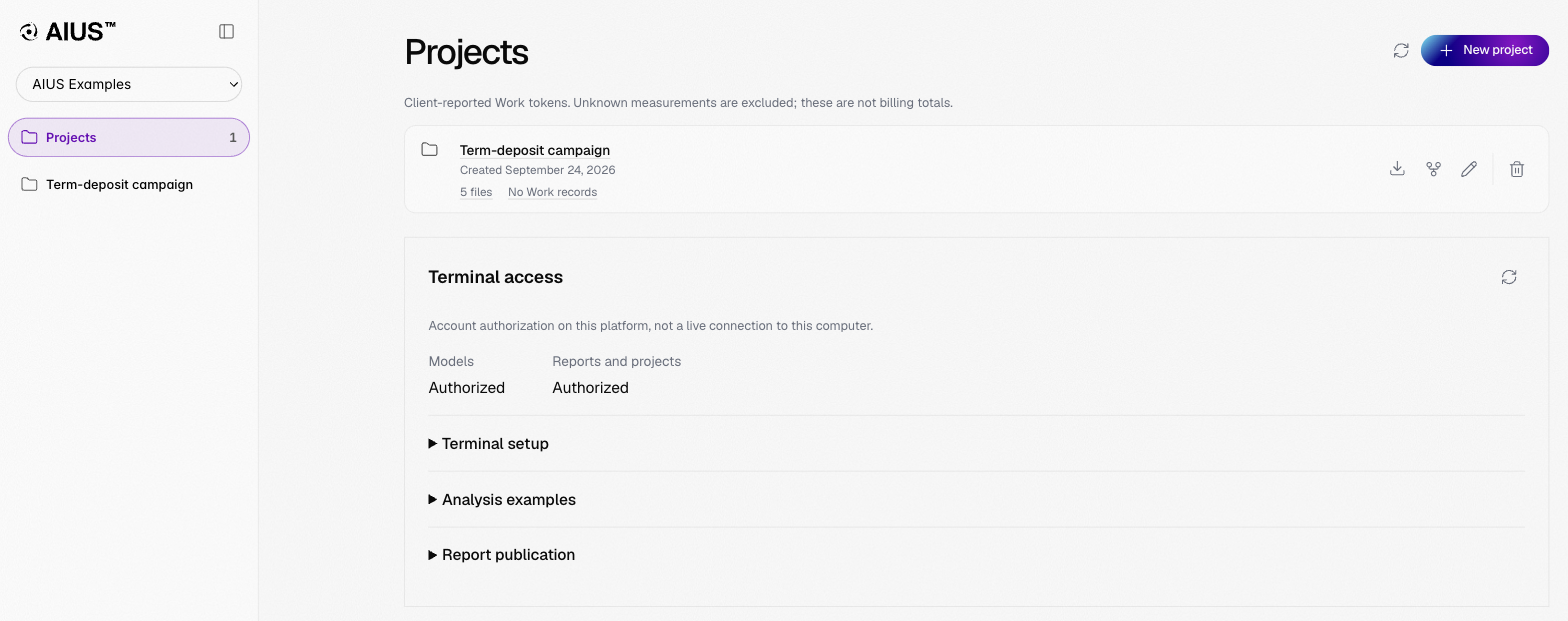
The Projects page
New project creates an empty project; the terminal can also create one for you when it publishes. Each project row shows its file count and recorded Work, and has actions to download all its files as a ZIP, fork, rename or delete it. Below the list:- Terminal access shows whether this account has authorised a terminal for models and for reports and projects. Terminal setup gives the two commands to install the terminal and start it; it signs in on first start.
- Analysis examples are prompts to copy into the terminal.
- Recent activity lists the organisation’s latest events.
A project
A project has three views, Report, Work and Outputs, and a files panel at the right edge.
Share link creates a read-only public link to a report
(Sharing). The ⋯ menu holds the report exports
(Excel workbook, CSV dataset), print, and the project’s rename, fork and delete
actions.